To turn on post notifications on Instagram, open the profile of an account you follow, tap the bell (Notifications) in the top right and switch on Posts — and, if you like, Stories, Reels and Live videos. You'll then be alerted every time that account shares a post. The other person isn't told, and you have to repeat this for each account separately.
The feed doesn't show everything in order, so it's easy to miss a favourite creator's drop, a shop's restock or a friend's big announcement. Post notifications fix that. Below: the exact steps, what each notification type does, how this differs from your general settings, and what to check when Instagram post notifications aren't working.
How to turn on notifications for one account
According to Instagram's support pages, it takes four taps:<!-- checked: 2026-10-16, https://help.instagram.com/1687419104847502/ -->
- Go to the profile of an account you follow.
- Tap Notifications (the bell) in the top right.
- Tap the switch next to Posts, Stories, Reels or Live videos.
- Choose the option you prefer for each type.
That's it — from now on Instagram sends you an alert whenever that account shares the content you selected.
Two things Instagram points out: turning notifications on or off doesn't notify the other person, and there's no bulk option — you have to visit each profile to change its settings.
Which notification types to choose
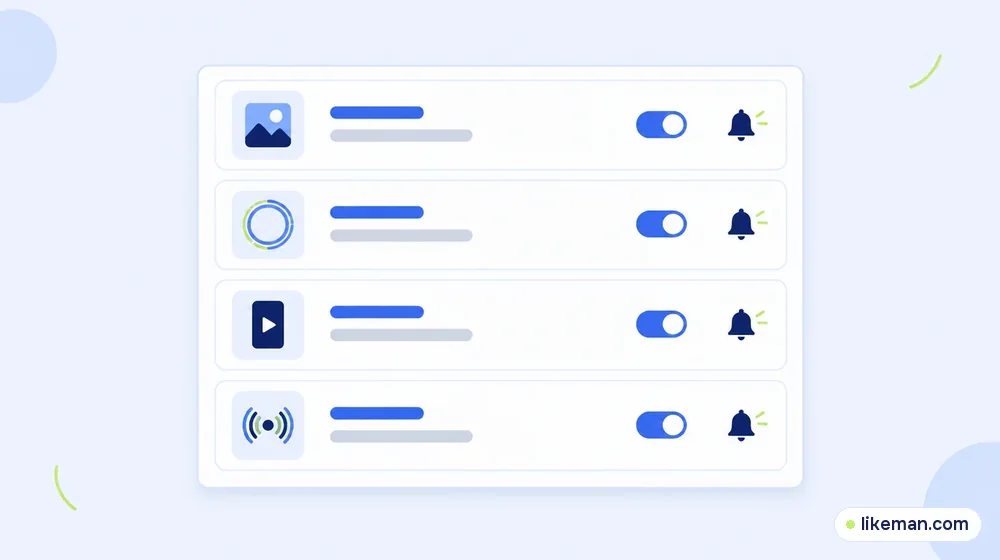
| Type | You get alerted when… | Good for |
|---|---|---|
| Posts | The account shares a feed photo or carousel | Shops, news, friends' milestones |
| Stories | They add a story | Daily updates, flash sales, behind-the-scenes |
| Reels | They publish a reel | Creators, tutorials, entertainment |
| Live videos | They go live | Q&As, launches, events |
Choose sparingly. If you turn on everything for dozens of accounts, the alerts become noise and you'll end up ignoring them — or Instagram's own systems may limit what reaches you.
Account notifications vs your general settings
Per-account notifications sit on top of your app-wide settings. You'll find the general ones under your profile → Menu → Notifications (below How you use Instagram). There you can manage alerts about likes, comments, follows and more, pause all push notifications, or use sleep mode.<!-- checked: 2026-10-16, https://help.instagram.com/546541825361643/ -->
If you've paused all push notifications there, the bell on individual profiles won't help until you unpause.
Instagram post notifications not working? Check these
- Phone settings. In iOS Settings → Notifications → Instagram, or Android Settings → Apps → Instagram → Notifications, make sure alerts are allowed.
- Focus or Do Not Disturb modes that silence apps at certain times.
- Paused push notifications in Instagram's own Notifications settings.
- The right type is on. You might have Stories on but Posts off for that account.
- You still follow them. Notifications work only for accounts you follow.
- Update the app and log out and back in if alerts stopped after an update.
- Battery saver on Android can block background notifications; exclude Instagram from it.
- Instagram's own filtering. Instagram says an AI system helps decide which posts and activity you're notified about, so not every alert is guaranteed.
Also, don't be surprised by alerts you didn't switch on: Instagram may send a notification when someone you follow shares something for the first time in a while, even if you haven't turned on notifications for them.
How to turn post notifications off
The same path works in reverse: open the profile, tap the bell and switch off the types you no longer want. The person isn't notified. If you want to hear less from an account without unfollowing, you can also mute its posts or stories from the Following menu on their profile.
Notifications on a computer
Per-account post notifications are managed in the Instagram app for Android and iOS; Instagram's instructions for content notifications tell you to log in to the app to set them. On a computer, you can see activity like likes, comments and follows in the notifications panel.
For creators: ask your fans to turn notifications on
If you're the one posting, notifications are your most direct line to your fans. A few tactics:
- Ask clearly in a story or a pinned comment: "Tap the bell on my profile so you don't miss the drop on Friday."
- Give a reason. Limited offers, Live Q&As and series episodes make notifications worth it.
- Post when your audience is online — our analysis of the best weekday posting times gives you a starting point.
- Don't overpost. Too many alerts and people switch them off again.
Track the effect in your insights: reach in the first hour after posting usually rises once fans turn on notifications. To see how replays are counted, check the way Instagram tallies Reels views.
How it works at LikeMan
Any creator asking people to tap the bell will find it easier with a profile that already looks established. LikeMan's Instagram followers need nothing but your public @username — passwords stay with you. The checkout shows the final amount, delivery starts by itself, and the year-long guarantee covers any losses. Ordered followers don't switch on notifications or react to alerts, so the bell-worthy content still has to come from you.
FAQ
Does someone know if I turn on post notifications for them?
No. Instagram doesn't notify people when you turn notifications on or off for their account.
Can I turn on notifications for an account I don't follow?
No. The bell appears for accounts you follow; follow first, then turn notifications on.
Why do I get notifications from accounts I didn't turn on?
Instagram may notify you when someone you follow posts for the first time in a while, regardless of your settings.
Can I turn on post notifications for many accounts at once?
No. You have to visit each profile and change its notifications individually.
Conclusion
To turn on post notifications on Instagram, visit a profile you follow, tap the bell and switch on Posts, plus Stories, Reels or Live videos if you want them. The account isn't told, and each profile is set separately. If alerts don't arrive, check your phone's notification settings, Focus modes, paused push notifications in Instagram and the exact types you enabled.