This Twitch streaming guide in short: install broadcasting software (or use the Twitch mobile app), paste your stream key from the Creator Dashboard, pick stable settings from Twitch's bitrate table, turn on AutoMod and past-broadcast storage, and stream on a schedule. Since 2026 every streamer gets Bits, subs and emotes, and reaching Affiliate now takes a couple dozen followers, a few hours of streaming over four days and at least three average viewers.
Twitch is built around live presence: people come for the stream, stay for the chat and come back for the community. The technical side is simpler than it looks, and the growth side is mostly about consistency and talking to your viewers. This guide covers setup, settings, moderation, VODs, growth, the 2026 monetization changes and our deeper articles.
1. What you need to start
According to Twitch, you need a stable internet connection and an encoder — software or a device that sends video to Twitch: a PC with broadcasting software, the Twitch mobile app, or a console such as Xbox, PlayStation or Nintendo Switch. You don't need a powerful computer, and a camera or microphone isn't required, although talking to chat is a big part of streaming.<!-- checked: 2026-10-16, https://help.twitch.tv/s/article/how-do-i-stream-faq -->
Twitch's rule of thumb for internet: your upload speed should be about 30% higher than your stream bitrate. A 6 Mbps stream needs roughly 8 Mbps upload.
2. Setup: software and stream key
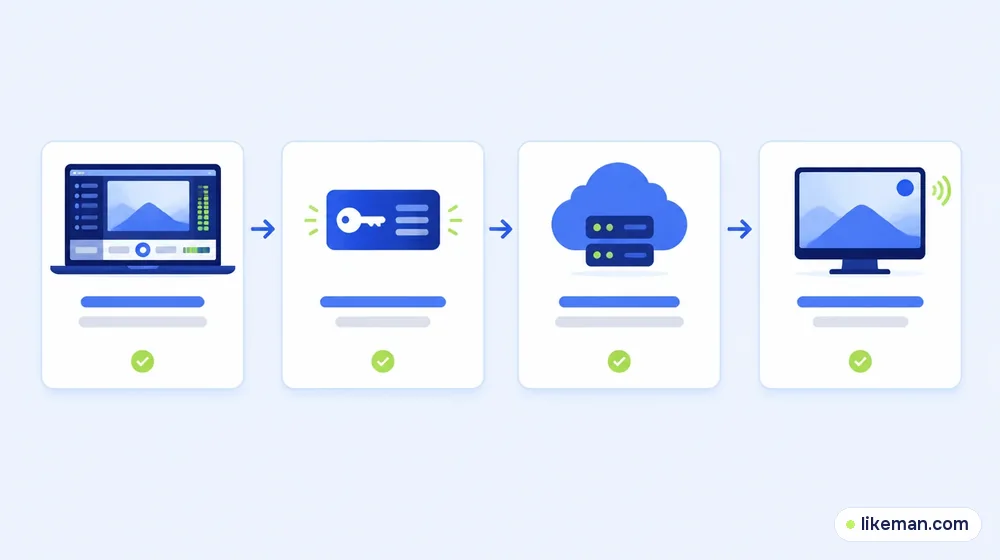
Twitch's list of common broadcasting apps includes OBS (free on Windows, Mac and Ubuntu), Streamlabs Desktop, PRISM Live Studio Desktop, Meld Studio and browser-based studios.<!-- checked: 2026-10-16, https://help.twitch.tv/s/article/recommended-software-for-broadcasting -->
Your stream key lives in the Creator Dashboard under Settings → Stream. Paste it into your software once; it stays valid unless you reset it. The key resets automatically whenever you change your password, and you can reset it manually anytime. Never show it on stream or share it — anyone with the key can broadcast to your channel. Channels run by several people should use authorized-streamer guest keys instead.<!-- checked: 2026-10-16, https://help.twitch.tv/s/article/twitch-stream-key-faq -->
Streaming from the Twitch app on iOS or Android doesn't need a stream key at all. For phone streams with overlays and alerts, Twitch also suggests apps such as Streamlabs Mobile, PRISM Live Studio, IRL Pro (Android) and Moblin (iOS).
3. Settings that keep the stream stable
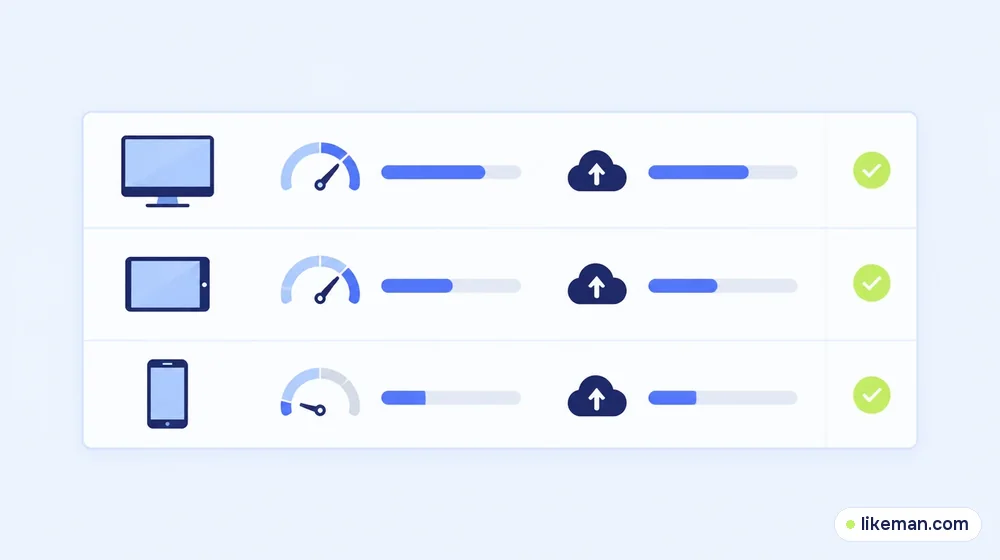
Twitch's broadcasting guidelines favour stability over sharpness.<!-- checked: 2026-10-16, https://help.twitch.tv/s/article/broadcasting-guidelines -->
| Resolution and frame rate | Video bitrate | Upload to aim for |
|---|---|---|
| 1080p 60 fps | 6,000 kbps | ~8 Mbps |
| 1080p 30 fps | 4,500 kbps | ~6 Mbps |
| 720p 60 fps | 4,500 kbps | ~6 Mbps |
| 720p 30 fps | 3,000 kbps | ~4 Mbps |
Other recommendations from the same page: use constant bitrate (CBR), a 2-second keyframe interval, GPU encoding such as NVENC if your CPU struggles (or x264 starting at the "veryfast" preset), and AAC audio at 96 kbps for compatibility, up to 160 kbps. A single broadcast can run for up to 48 hours.
4. Chat and moderation
Chat is the heart of Twitch, and moderation keeps it welcoming. AutoMod holds risky messages for a moderator to approve or deny; you choose a level from 0 (no filtering) to 4 (strictest) in Creator Dashboard → Moderation → Settings, across categories including discrimination, sexual content, hostility, profanity and smart detection. AutoMod never bans anyone on its own — your mods do.<!-- checked: 2026-10-16, https://help.twitch.tv/s/article/how-to-use-automod -->
Good habits: appoint at least one trusted moderator early, write short chat rules, and greet new chatters by name.
5. VODs, Highlights and clips
Past broadcasts (VODs) are saved only if "Store past broadcasts" is on — and that switch is only in the web Creator Dashboard, not the mobile app.<!-- checked: 2026-10-16, https://help.twitch.tv/s/article/video-on-demand -->
| Content | How long it stays |
|---|---|
| Past broadcasts, regular streamers | 7 days |
| Past broadcasts, Affiliates | 14 days |
| Past broadcasts, Partners, Prime and Turbo | 60 days |
| Highlights and uploads | Kept indefinitely, 100-hour combined limit |
Turn your best moments into Highlights before the VOD expires, and download streams you want to keep. A simple routine helps: after every stream, spend ten minutes marking two or three moments worth keeping, then cut them into Highlights or short clips the next day. Over a month, that gives you a library of content to share on other platforms and to show new visitors what your channel is about. Clips from viewers are free marketing — share them on other platforms.
6. Monetization for All and the 2026 Affiliate criteria
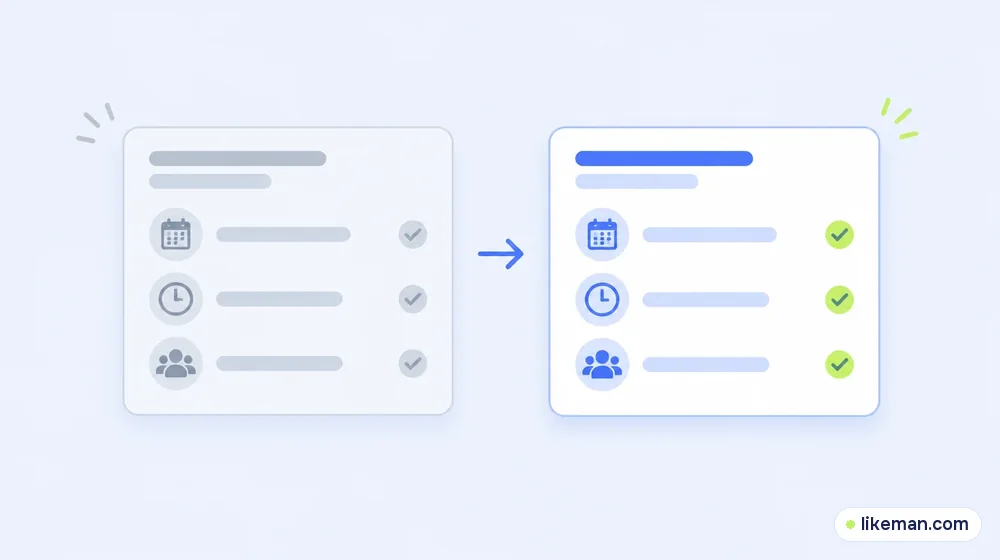
In 2026 Twitch made its community tools — Bits, subscriptions, emotes, badges, Channel Points — available to every streamer, rolling out globally from 13 May 2026. You still need Affiliate or Partner status to be paid out, and the minimum payout stays at $50. Twitch also lowered the Affiliate bar from June:<!-- checked: 2026-10-16, https://blog.twitch.tv/en/2026/05/13/monetization-for-all/ -->
| Criterion | Old | Updated |
|---|---|---|
| Time streamed | 8 hours | 4 hours |
| Days streamed | 7 different days | 4 different days |
| Viewers | Average 3 concurrent | Minimum 3 average concurrent viewers on 4 different days |
| Followers | 50+ | 25+ |
Streamers who hit the milestones receive an email and a Creator Dashboard notification to start onboarding. Coming in this cluster: how to track the Affiliate requirements, and how much Twitch streamers make from subs, Bits and ads.
7. Growing an audience
Our guide to getting followers on Twitch and reaching Affiliate and Partner covers growth step by step. The fundamentals:
- A schedule. Stream on the same days and times so people can find you again.
- A clear category and title. Say what's happening: "Speedrun practice — trying sub-30" beats "Chill stream".
- Talk constantly. Even to an empty chat; viewers who drop in hear a show, not silence.
- Clips and short videos. Post highlights to TikTok, Shorts and Reels with a link to your channel.
- Raids and collaborations. Raid streamers your size at the end of your stream; co-stream with friends.
- Panels and branding. A clear "About" panel, schedule and social links — our article on panel sizes and ideas is coming next.
8. Choosing a category
Your category decides who finds you in the directory. Huge categories bury small streams under thousands of others; tiny categories have few viewers. Many new streamers do best in mid-sized categories where a small channel can appear on the first screen. Experiment for a few weeks, note how many viewers find you from the directory in each category, and settle where you can be seen.
Titles and tags help too. Describe what's happening right now — a goal, a challenge, a specific level or topic — and add tags for language and style so the right viewers find you.
9. Overlays, alerts and Channel Points
- Overlays frame your camera and show recent followers or goals; keep them clean so the game or content stays visible.
- Alerts for follows and subs let you thank people live — one of the simplest ways to make newcomers feel seen.
- Channel Points reward viewers for watching; custom rewards ("pick the next song", "choose my character") turn passive viewers into participants.
- Emotes — even simple ones — give your community its own language.
10. Collaborating with other streamers
Raids send your viewers to another stream when you end; the receiving streamer often returns the favour. Twitch also has a built-in Stream Together feature for collaborating live with other creators. Pick partners your size with overlapping audiences, plan a shared activity, and promote it on both channels beforehand.
11. Stream delay and safety
If you stream competitive games or worry about stream sniping, Twitch lets you add a stream delay so viewers see the broadcast slightly later than it happens. Keep personal information off screen, check your background before going live, and never read out addresses or phone numbers from chat.
12. Reading your stream summary
After each stream, the Creator Dashboard's stream summary shows how many viewers you had, how long they stayed and where they came from. Track three numbers over time: average viewers, follows per stream and returning chatters. If average viewers rise but follows don't, work on calls to action and community moments; if neither rises, revisit category, schedule and title.
13. When you can't go live
Twitch names two main reasons a stream won't start: a streaming suspension (temporary, from 24 hours to 30 days, with an email and a Creator Dashboard message; check status at appeals.twitch.tv) and technical problems — weak upload, wrong stream key, wrong server or incompatible encoder settings. Twitch suggests 3–6 Mbps upload as a baseline and a wired connection over Wi-Fi.<!-- checked: 2026-10-16, https://help.twitch.tv/s/article/why-cant-i-stream -->
If the stream starts but keeps dropping, it's almost always the connection or the encoder, not a suspension.
Streaming on mobile and IRL
Phone streaming has grown fast: walks, events, cooking and travel streams all work from a phone. Twitch's guide for mobile streamers recommends setting up alerts and default emotes first, testing the connection before going live, using strong Wi-Fi or cellular signal and promoting the stream on social media with the date and time. Apps that combine Wi-Fi and mobile data can keep an outdoor stream stable when signal drops. Remember that past-broadcast storage has to be switched on from the web dashboard before you stream from a phone.<!-- checked: 2026-10-16, https://help.twitch.tv/s/article/getting-started-on-twitch -->
Building a schedule people remember
A schedule is the simplest growth tool on Twitch. Viewers who enjoyed one stream need to know when the next one is. Pick days and times you can keep for at least two months, publish them in your panels and in the Twitch schedule, and announce changes in advance on your other platforms. Shorter, regular streams beat long, unpredictable ones: three two-hour streams on fixed evenings build a habit faster than one random eight-hour marathon. Over time, look at which slots bring the most returning chatters and move your schedule toward them.
14. Content rules worth knowing
Twitch's Community Guidelines apply to everything on stream, including music and videos you play. Watch parties and copyrighted films have specific rules — our upcoming article on whether you can stream movies on Twitch explains the risks. When in doubt, don't broadcast content you don't have rights to.
15. A first-month plan
| Week | Focus | Goal |
|---|---|---|
| 1 | Setup, test stream, AutoMod, VOD storage on | Stable 720p stream |
| 2 | 3 streams on fixed days | 4 hours streamed |
| 3 | Clip highlights, post to short-video apps | First followers from clips |
| 4 | Raid and collaborate; review analytics | Affiliate milestones in sight |
16. Equipment on a budget
- Microphone first. Clear audio matters more than a camera upgrade.
- Light second. A desk lamp or window in front of you.
- Camera third. A phone or basic webcam is fine at the start.
- Second monitor helps you read chat without leaving your game or work.
17. Mistakes that slow channels down
- Irregular schedules.
- Silent streams — no commentary, no chat interaction.
- Showing the stream key or personal information on screen.
- Ignoring moderation until there's a problem.
- Letting VODs expire before clipping the best moments.
How it works at LikeMan
We don't manage channels; we sell growth services. On our Twitch page you'll find followers and live viewers for a stream. Orders use your public channel link — never your stream key or password — with the price shown before payment, automatic start and a 365-day refill guarantee. Twitch's Affiliate check looks at real viewers and streaming time, and community is built in chat, so delivered numbers are only a first impression while you put in the hours.
FAQ
What do I need to start streaming on Twitch?
A stable internet connection and an encoder: broadcasting software on a PC, the Twitch mobile app or a console.
What are the Twitch Affiliate requirements in 2026?
Stream at least 4 hours on 4 different days, with an average of at least 3 concurrent viewers on those days, and have 25+ followers.
Can I earn before becoming an Affiliate?
Every streamer can switch on Bits and subs now, but money is paid out only after you reach Affiliate or Partner and cross the $50 line.
How long are Twitch VODs saved?
7 days for regular streamers, 14 for Affiliates, 60 for Partners and Prime or Turbo users — if past-broadcast storage is on.
Do I need a camera to stream?
No. Twitch doesn't require one, and many games and creative streams run without a face cam. A microphone matters more, because talking to chat is what keeps viewers around.
How do I protect my stream key?
Never show the settings window on stream, don't send the key to anyone, and reset it right away if it leaks. Changing your password also resets the key.
Can I stream from a console?
Yes. Twitch lists Xbox, PlayStation and Nintendo Switch among the devices that can broadcast; sign in to Twitch from the console's broadcast settings.
What bitrate should I use?
For 720p 30 fps, about 3,000 kbps; for 1080p 60 fps, about 6,000 kbps, with upload speed roughly 30% higher.
Conclusion
Going live on Twitch takes an encoder, a stream key and stable settings; growing takes a schedule, constant conversation, moderation and clips that travel. With Monetization for All and the lower 2026 Affiliate bar, new streamers can start earning sooner than ever. Each section above points to a deeper article for the next step.