Facebook* View As shows your profile the way people who aren't your friends see it. Go to your profile, tap or click Options (⋯) below your name and choose View as. A banner appears at the top; select Exit view as when you're done. Some details — your name, profile picture, cover photo, username and follower count — are always public, whatever your settings.
Privacy settings are easy to change and hard to picture. You set an old post to "Friends", hide your birthday, lock down your friend list — but what does a stranger actually see when they find you? View As answers that in seconds. Below: how to use it on a computer and phone, a table of what each type of visitor sees, the information Facebook* treats as always public, and what no one can see — including who looked at your profile.
How to use View As
Meta's help page lists the route:<!-- checked: 2026-10-16, https://www.facebook.com/help/288066747875915/ -->
On a computer:
- Open your own profile (avatar at the upper right → your name).
- Click Options (⋯) below your name.
- Select View as.
- To leave, click Exit view as in the banner.
In the Facebook* app: open your profile, tap the ⋯ button next to Edit profile and choose View as. The screen reloads as the public would see it.
What you see is the public view — the version shown to people on Facebook* who aren't your friends.
What the owner, friends and strangers see
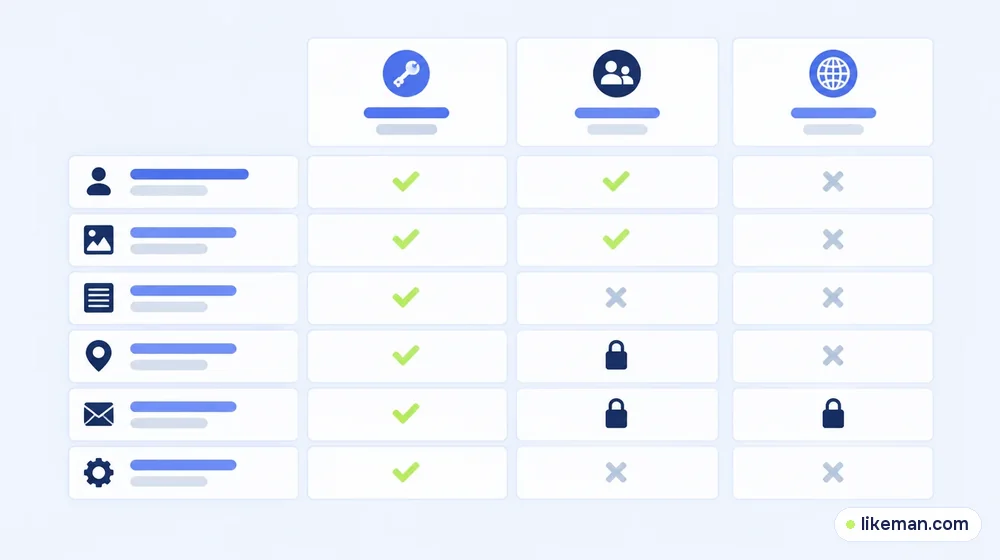
| Item | You (owner) | A friend | Not a friend |
|---|---|---|---|
| Name, profile picture, cover photo | Yes | Yes | Yes — always public |
| Username and follower count | Yes | Yes | Yes — always public |
| Posts set to Public | Yes | Yes | Yes |
| Posts set to Friends | Yes | Yes | No |
| Posts set to Only me | Yes | No | No |
| Intro details (work, city, school) | Yes | Depends on each item's audience | Only items set to Public |
| Friend list | Yes | Depends on your setting | Only if set to Public |
Use View As to check the rows that depend on settings. If something shows in the public view that you don't want strangers to see, go back and change that item's audience.
What's always public on Facebook*
Facebook*'s explanation of public information lists what anyone can see, including non-friends, people off Facebook* and media outlets:<!-- checked: 2026-10-16, https://www.facebook.com/help/203805466323736/ -->
- Your public profile: name, gender, username and user ID, profile picture and cover photo.
- Some profile details such as age range, language and country.
- Your follower count and whether your profile is in professional mode.
- Anything you share with Public, or anything shared where no audience selector appears.
- Posts and comments on Pages and public groups, and comments on public posts.
Facebook* adds that public information can appear in search engines and be accessed by integrated apps and research tools. That's why the profile picture and cover photo deserve as much thought as any post.
What nobody can see — including you
Some things stay hidden from everyone:
- Who viewed your profile. Facebook* doesn't let you track who views your profile or your posts, and it doesn't tell people that you looked at theirs.<!-- checked: 2026-10-16, https://www.facebook.com/help/210896588933875/ -->
- Posts set to Only me — no one else sees them in any view.
- Your searches and watch history — not shown to other people.
- Your private messages — only the people in the conversation see them.
Apps and extensions that promise to show profile visitors can't access this data. They're a common way to steal Facebook* logins.
A five-minute privacy check with View As
- Open View as and scroll the whole profile.
- Note anything you didn't expect: old public posts, your workplace, a tagged photo.
- Exit, then fix each item — change a post's audience, edit Intro details, or limit past posts in one go from the privacy settings.
- Check profile picture and cover photo: since they're public, choose images you're happy for anyone to see.
- Open View as again to confirm.
Remember Facebook*'s caveat: posts and photos you hide from your profile are still visible to their original audience elsewhere, such as in Feed or search. Hiding from the profile isn't the same as changing the audience.
When you want people to see more
Not everyone wants a locked profile. Creators, freelancers and small businesses often want strangers to find their work. In that case:
- Turn on professional mode so non-friends can follow you.
- Share selected posts as Public — portfolios, announcements, offers.
- Keep personal items set to Friends, and check the split with View As.
Our guide on getting more Facebook* followers covers how to turn a public profile into a growing audience.
How it works at LikeMan
Your follower count is one of the always-public numbers on your profile, and a low figure can make a professional profile look new. LikeMan offers Facebook* followers delivered to a public profile or Page link — no password, no admin role. The full amount is shown at checkout, the order proceeds automatically, and drops over the following year get refilled. Ordered followers raise the number visitors see; they don't comment or share, so your public posts still have to earn attention.
FAQ
Where is View As on Facebook*?
On your profile, open Options (⋯) below your name and select View as.
Can I view my profile as a specific friend?
Facebook*'s current View As tool shows the public view — how people who aren't your friends see your profile.
Can people see that I viewed their Facebook* profile?
No. Facebook* doesn't tell people you've seen their profile, and it doesn't let you track who viewed yours.
Why can strangers see my profile picture?
Your profile picture and cover photo are part of your public profile, which Facebook* treats as public information.
Conclusion
Facebook* View As shows your profile through a stranger's eyes: Options (⋯) → View as on your profile, then Exit view as. Use it to catch public posts and details you meant to keep private, remember that your name, photos, username and follower count are always public, and ignore any tool claiming to reveal who viewed your profile — Facebook* doesn't share that with anyone.