
As a host, you hide the chat on a TikTok LIVE when you go to LIVE → Settings → Comment settings and switch off "Allow comments" (before or during the stream). To pin a comment, tap it in the chat and choose "Pin this comment". You can also filter spam and unkind comments, mute viewers, set mute rules and block up to 500 keywords. As a viewer, you can't turn off someone else's chat, only declutter your own screen if your app offers it.
A busy LIVE chat is great — until spam, trolls or off-topic comments take over. TikTok gives hosts and moderators a full toolbox for that. Below: how to turn comments off, pin messages, filter and block keywords, mute viewers, what viewers can do, and the equivalent controls on Instagram* Live.
What hosts and moderators can do
According to TikTok's help page on LIVE comments, creators and moderators can:<!-- checked: 2026-10-16, https://support.tiktok.com/en/live-gifts-wallet/tiktok-live/comments-on-tiktok-live -->
- turn comments on or off;
- mute comments from specific viewers for a set time;
- report and filter unkind, spammy or community-flagged comments;
- review filtered comments and approve or permanently hide them;
- send an automated message telling viewers that comments are filtered (creators only);
- block comments that contain chosen keywords or phrases;
- pin comments to the top of the chat;
- translate comments into the app's language.
Most of these work only in the TikTok app. Moderators can use comment settings only if the creator gives them comment permissions.
Turning the LIVE chat off (host)
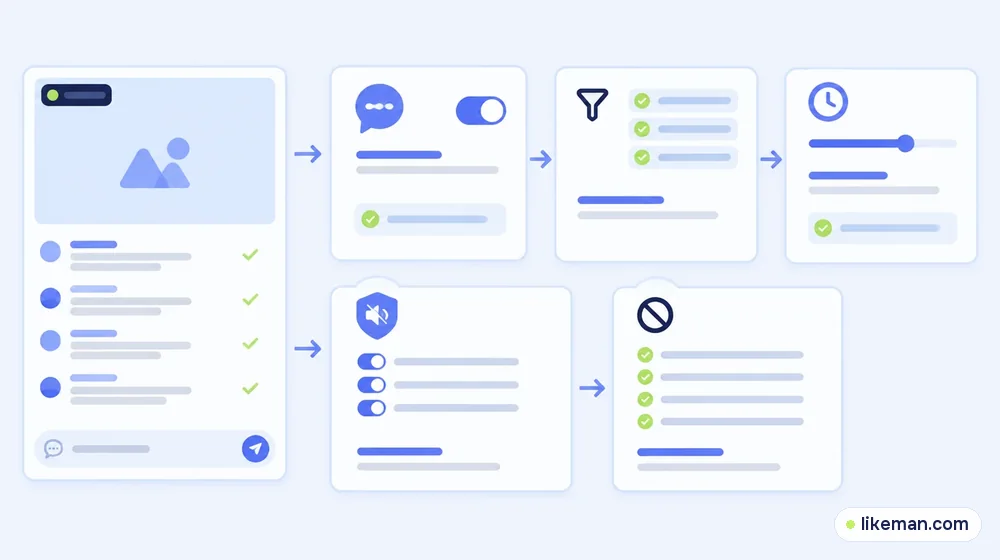
- Tap + at the bottom of the app.
- Swipe to LIVE.
- Tap Settings.
- Tap Comment settings.
- Turn off Allow comments.
Comment settings are available before and during a LIVE. On the web, open the Settings button in the LIVE chat panel → Moderation settings → Comment settings.
How to pin a comment on TikTok LIVE
- During the LIVE, tap the comment in the chat (or tap the viewer's profile → More …).
- Choose Pin this comment.
The comment stays at the top of the chat for a short time. Use pins for rules, links mentioned on stream or a great question you're answering.
Filters, keyword blocks and mute rules
| Setting | What it does |
|---|---|
| Filter comments | Hides spam, potentially unkind and community-flagged comments; spam and unkind filters are on by default |
| Mute duration | How long muted viewers stay muted — a set time or the whole LIVE |
| Mute rules | Automatically mutes viewers who type an exact word, phrase or emoji you add; applies to one LIVE |
| Blocked keywords | Up to 500 keywords of up to 30 characters each; matching comments aren't shown to anyone |
| Show the most sent comment | Displays a repeated comment outside the chat area; can be turned off |
Two details from TikTok's page worth knowing: blocked keywords also catch similar versions by default (block "bad" and "baddd" is caught too), while mute rules only match the exact word you entered.
Community-flagged comments are ones the TikTok community has previously blocked, muted or reported. If you filter them, viewers won't see them and they appear faded to you and your moderators.
Muting or blocking a viewer
Tap the viewer's comment or profile in the chat and choose:
- Mute account — they can't comment for the chosen time and are notified.
- Block — they can't comment or watch your current LIVE and can't interact with your posts, profile or messages until unblocked.
- Report — sends the comment to TikTok for review.
Can viewers hide chat on someone else's LIVE?
Viewers can't switch off the host's comments for everyone. Depending on your app version, you may find an option to clear the screen for yourself, which hides overlays such as comments on your own device only. If you don't see it, update the app. You can always mute or report individual commenters if the chat bothers you.
Hiding comments on Instagram* Live
On Instagram*, only public accounts with at least 1,000 followers can start a Live video.<!-- checked: 2026-10-16, https://help.instagram.com/272122157758915/ --> To keep the chat under control, you can assign one moderator when you start the broadcast. Moderators can report comments, remove a viewer from the Live, and turn off commenting for a specific account — that person still sees their own comments, but nobody else does. After the Live, "Review moderator actions" lets you take further action, such as blocking.<!-- checked: 2026-10-16, https://help.instagram.com/1175145849979325/ -->
Tips for a healthier LIVE chat
- Add blocked keywords before you go live, including common spam phrases in your niche.
- Assign at least one trusted moderator with comment permissions.
- Pin your chat rules at the start.
- Greet regulars by name — a friendly chat moderates itself.
- Read our guide on the follower count needed to go LIVE on TikTok if you're not eligible yet, and see TikTok's payout rates per 1,000 views if you're planning to earn from your streams.
How it works at LikeMan
Outside of LIVE, a new video with no comments can feel empty to the first viewers. LikeMan offers TikTok comments for regular videos, ordered from the video's public link without any login. Pricing is visible before payment, and drops within twelve months are refilled. We don't recommend using ordered comments in LIVE chats — real-time conversation is exactly what makes a LIVE work. Growth tips are in our TikTok follower guide.
FAQ
Can I turn off comments in the middle of a TikTok LIVE?
Yes. Comment settings are available before and during a LIVE: Settings → Comment settings → Allow comments.
How long does a pinned comment stay?
TikTok says pinned comments stay at the top of the chat for a brief period. Pin it again if you need it visible longer.
How many keywords can I block on TikTok LIVE?
Up to 500 keywords or phrases, each up to 30 characters.
Can moderators hide comments?
Yes, if the creator grants them comment permissions.
Conclusion
For a quiet stream, turn off "Allow comments" in Comment settings; to keep it but clean it up, use filters, blocked keywords, mute rules and moderators, and pin the comments that matter. On Instagram* Live, a moderator can turn off comments from specific accounts. Set it all up before going live, and the chat will stay a place people want to join.