
To share a post on Facebook, tap Share under the post and choose where it goes — your Feed (instantly or with your own text), your Story, a group, a Page you manage, or a Messenger chat. You can also copy the post's link. A post can only be shared if its audience allows it: to make your own posts shareable by anyone, set the audience to Public.
Sharing is how posts travel on Facebook: every share puts a post in front of a new circle of friends. Below: how to share someone else's post, where shared posts appear, how to create a post of your own, how to make posts shareable, how to share your profile link, and why the Share button sometimes disappears.
How to share someone else's post
- Find the post in your Feed, a group or a Page.
- Tap Share below it.
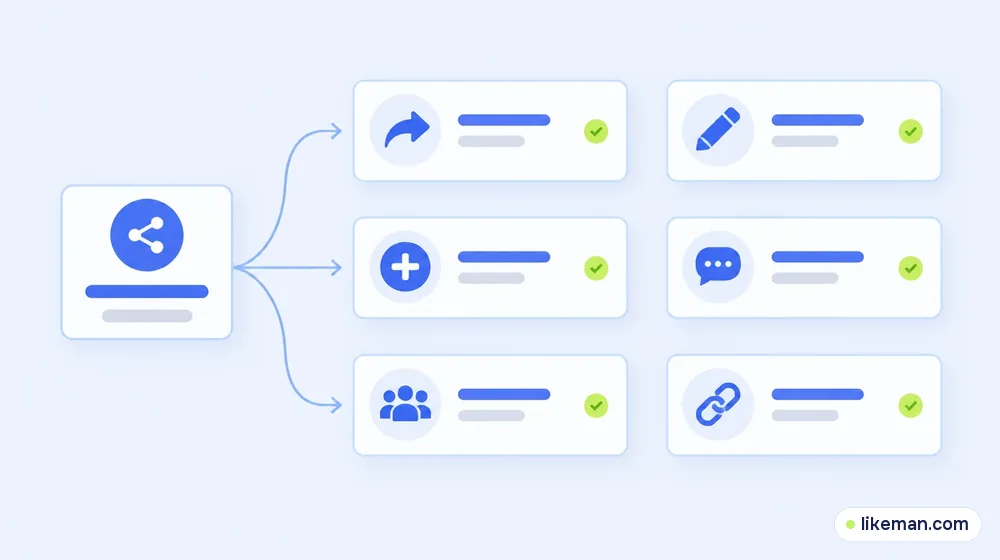
- Choose an option from the share menu:
- Share now — posts it straight to your Feed.
- Write a post / Share to Feed — add your own comment first and pick an audience.
- Share to your Story — appears in your Story for 24 hours.
- Send in Messenger — sends it privately to a person or chat.
- Share to a group or a Page you manage.
- Copy link — for other apps, email or websites.
- Confirm.
Menu labels differ slightly between the app and the website and between versions, but these options cover what's available.
Where shared posts appear
| Where you share | Who sees it | How long |
|---|---|---|
| Your Feed / profile | Your chosen audience | Until you delete it |
| Your Story | Your Story audience | 24 hours |
| Messenger | The person or chat you sent it to | Stays in the conversation |
| A group | Group members (depending on the group's privacy) | Until removed |
| A Page you manage | People who follow the Page | Until you delete it |
One important limit: a shared post never shows to more people than the original's audience allowed. If a friend posts to "Friends" only and you share it, people outside their friends list won't see the original content.
How to create your own post
According to Facebook's Help Centre, you start a new post from What's on your mind? at the top of your Feed, add text or choose a post type (photo/video, feeling/activity), optionally check in, tag people or add a GIF or live video, choose your audience with the audience selector (for example Public) and tap Post.<!-- checked: 2026-10-16, https://www.facebook.com/help/418076994900119 -->
How to make a post shareable
The audience you choose decides who can share it:
- Public — anyone can see and share the post. Best for posts you want to spread.
- Friends — your friends can share it, but only friends will see the original content.
- Only me / specific people — effectively not shareable.
To change the audience of an existing post: open the post, tap the three dots → Edit audience (or the audience icon under your name) and choose Public. For Pages, posts are public by default.
How to share your profile or Page
- Profile link: open your profile, tap the three dots (or …) and choose Copy profile link. Your link looks like facebook.com/yourname if you've set a username.
- Page link: open the Page, tap Share or the three dots and choose Copy link.
- QR code: some versions offer a QR code for your profile or Page — useful at events or on printed material.
Before sharing your profile widely, check what the public sees. Facebook's View As shows your profile as it appears to people who aren't your friends; our upcoming guide explains it step by step.
Why the Share button is missing
- The post's audience is limited (Friends, Only me or custom).
- It's in a private group — content from private groups can't be shared outside them.
- The author restricted it — for example, some Stories and Reels have sharing turned off.
- App glitch — update Facebook or try the website.
Tips: posts people want to share
- Lead with something useful or surprising in the first line.
- Add a clear image or short video.
- Keep it relevant to a specific audience — "for new parents in Austin" beats "for everyone".
- Ask a question that invites people to tag or share with a friend, without begging for shares.
- Publish when your readers are usually on Facebook, then answer the first comments quickly.
Our 14-step follower guide for Facebook covers what else helps a Page or profile grow.
How it works at LikeMan
A Page with very few followers can make even good posts look unnoticed, and fewer people share posts from accounts that seem inactive. LikeMan offers Facebook followers ordered with the public link of your profile or Page — we don't need your login. The price is clear before checkout, nothing needs to be configured afterwards, and we top up losses for twelve months. Followers from an order don't share posts; real sharing comes from content people care about. Other options are on our Facebook page.
FAQ
How do I share a post on Facebook with my own comment?
Tap Share → Write a post (or Share to Feed), add your text, choose the audience and post.
Why can't I share a friend's post?
Their post is probably limited to Friends, specific people or a private group, or the author disabled sharing.
Can people see if I share their post?
The original author can usually see shares that are visible to them, depending on the audience you chose.
How do I share a Facebook post on WhatsApp or Instagram?
Use Share → Copy link and paste it into the other app, or use the app-specific option if it appears in the share menu.
Conclusion
Sharing on Facebook takes one tap on Share: choose Feed, Story, group, Page, Messenger or a copied link. Whether a post can be shared depends on its audience, so set your own posts to Public when you want them to spread. Use your profile link or QR code to bring people to your page, and write posts that are worth passing on.